 The Crosswalk
elementaryOS: Mac Look, Zero Apple
A visual walkthrough of elementaryOS, the Linux distro that looks like macOS without the lock-in
update 9/27/26: I came across some posts online in a forum where someone was complaining that elementaryOS had a bad update that caused them some headache. This distro Bundles the Linux kernel with other software components for a complete operating system could potentially necessitate frequent backups more urgently than the others I talk about.
This is going to be the first of a series of short posts with images showing off what different distros Bundles the Linux kernel with other software components for a complete operating system look like. Linux An alternative to Windows or MacOS on computers. is free, can run on old and new hardware, and puts you back in control of your device without spying on you.
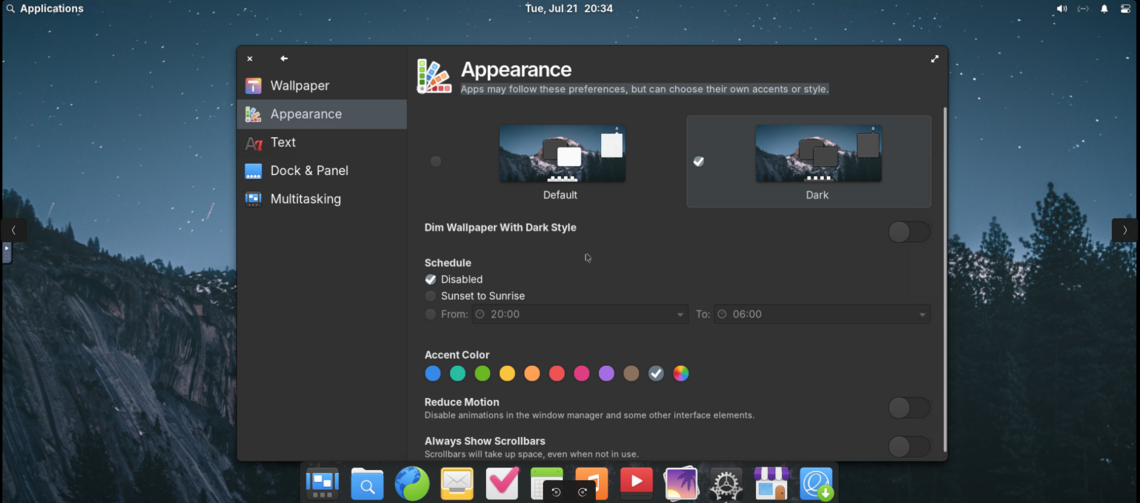
The first one I'm showing you is elementaryOS. This is a distro Bundles the Linux kernel with other software components for a complete operating system that has a look and feel of macOS because it's using the Pantheon desktop environment. It's got the close and minimize/maximize on the left, the centered dock, and the top menu bar. I don't know mac and I have a number of reasons why I plan on keeping it that way, so that's all I know about the look.
If you have a mac and are interested in putting Linux An alternative to Windows or MacOS on computers. on it, research the model you have to see what other people have done and had trouble with.
You can check out the blog for elementaryOS, because it can give you more info and views of their features. Here's an example talking about some of the changes they made around a year ago.
Getting started
If you boot with a live usb, like I discuss in this post, you'll see the boot screen first.
Using live boot allows you to test this on a new or old mac. It's your best way to know if a distro Bundles the Linux kernel with other software components for a complete operating system will work on your computer before you wipe it and install for real.
Boot screen
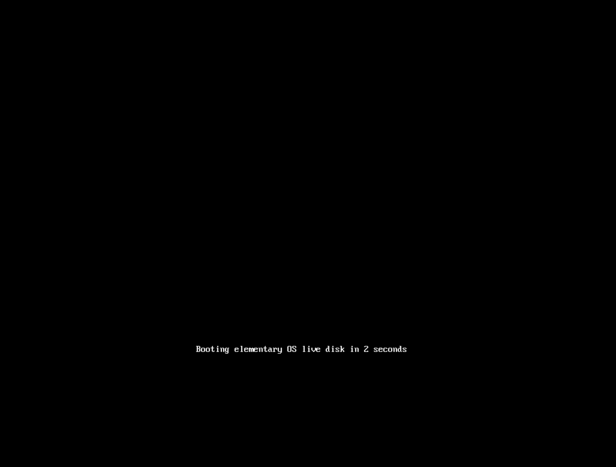
There are no options to choose on this first screen you see. It's a black screen with a countdown that says, "Booting elementary OS live disk in X seconds..."
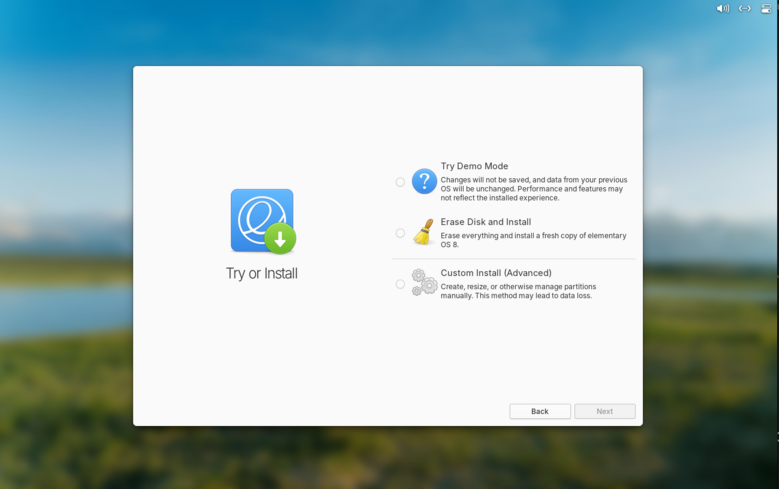
The next thing you'll see is the "Try or install" screen.
Try/install
The next screen you see is "Try or install." Be careful here. Select "Try Demo Mode." AVOID "Erase disk and install" because that will wipe your drive, and all your files will be gone from the computer.
Welcome screen
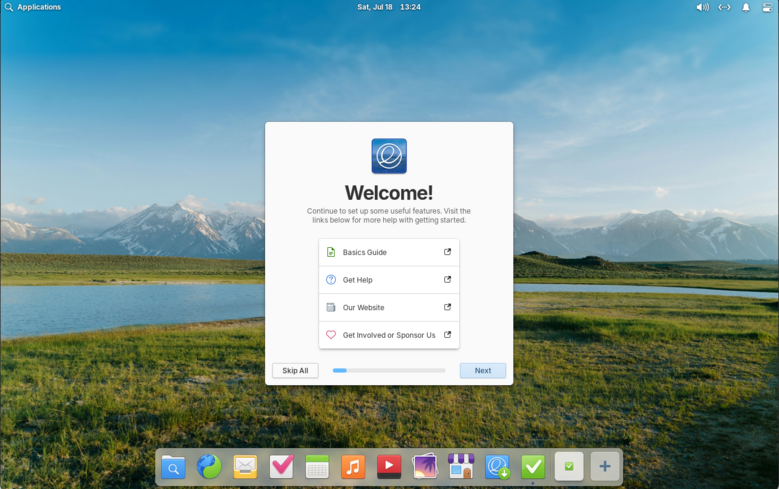
After you choose "Try Demo Mode", a welcome screen pops up with some guides "Basics Guide," and it walks you through some screens where you choose language, region, etc.
A few desktop screens
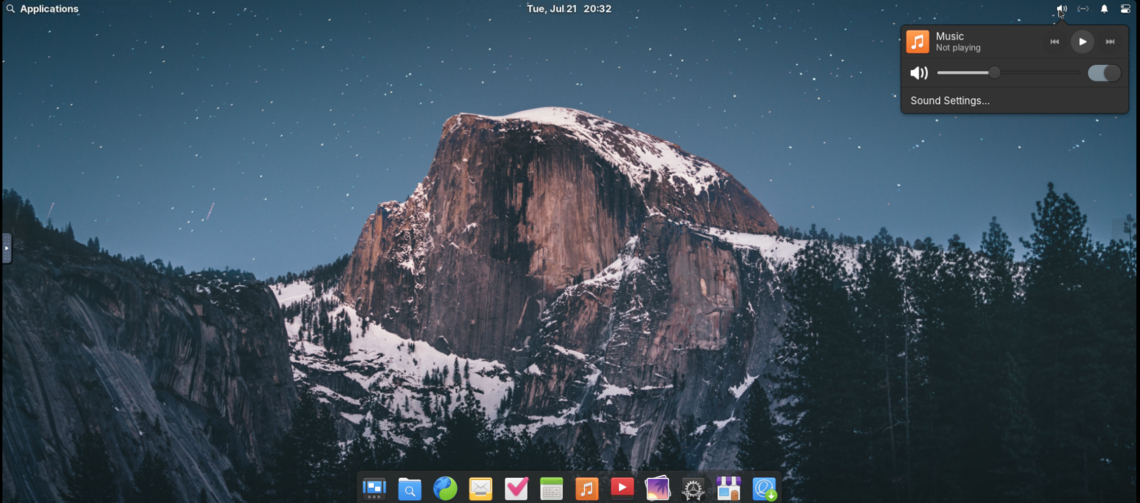
You'll notice the dock in the bottom middle, the app menu is in the upper left, and if you want to get to a few other apps and system things, you'll look at the top right at the system indicators.
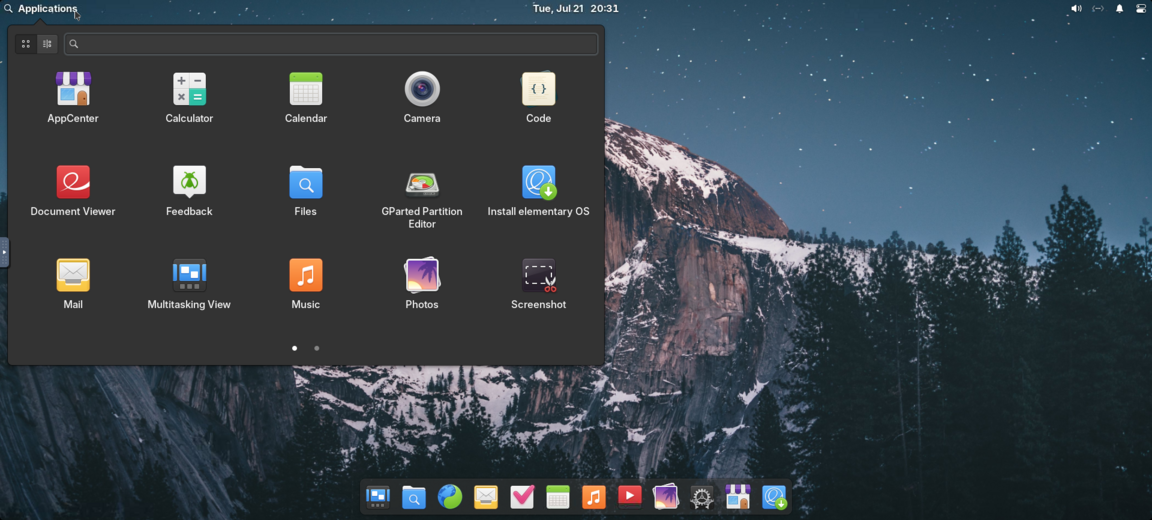
In your live boot session, be cautious in the app menu because there is something there that says "Install elementary OS." Don't do that unless you're ready to erase your computer.
Make it yours
In probably 30 seconds, you can make this feel personal.
I want to highlight some of the things you can do. I like to right click on the desktop to play around with the options available. The display settings are easy to change and find.
Each Linux An alternative to Windows or MacOS on computers. distro Bundles the Linux kernel with other software components for a complete operating system has different things you can do. If you need a lot of accessibility options, there's probably a distro Bundles the Linux kernel with other software components for a complete operating system for that. If you want more parental controls, I bet there's a safe option.
Once you're past the initial set up with elementary OS, here is what some of the settings options are like.
Dark mode
I need dark mode, because light mode is painful.
Text size and dyslexia-friendly font
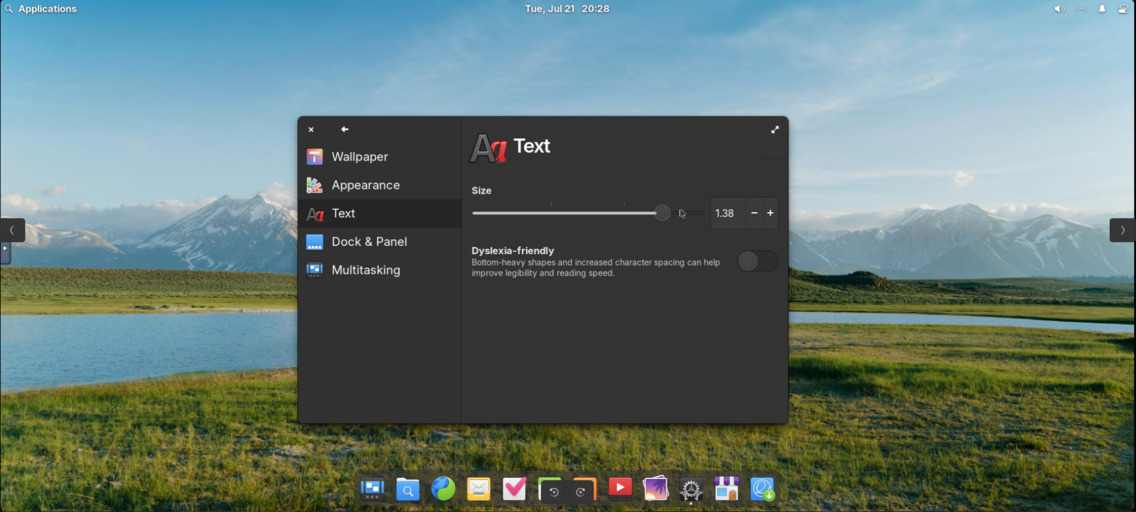
I typically need to increase my text size. Beyond that, I was struck by the dyslexia-friendly font toggle. I like when I see accessibility features.
Dock resize
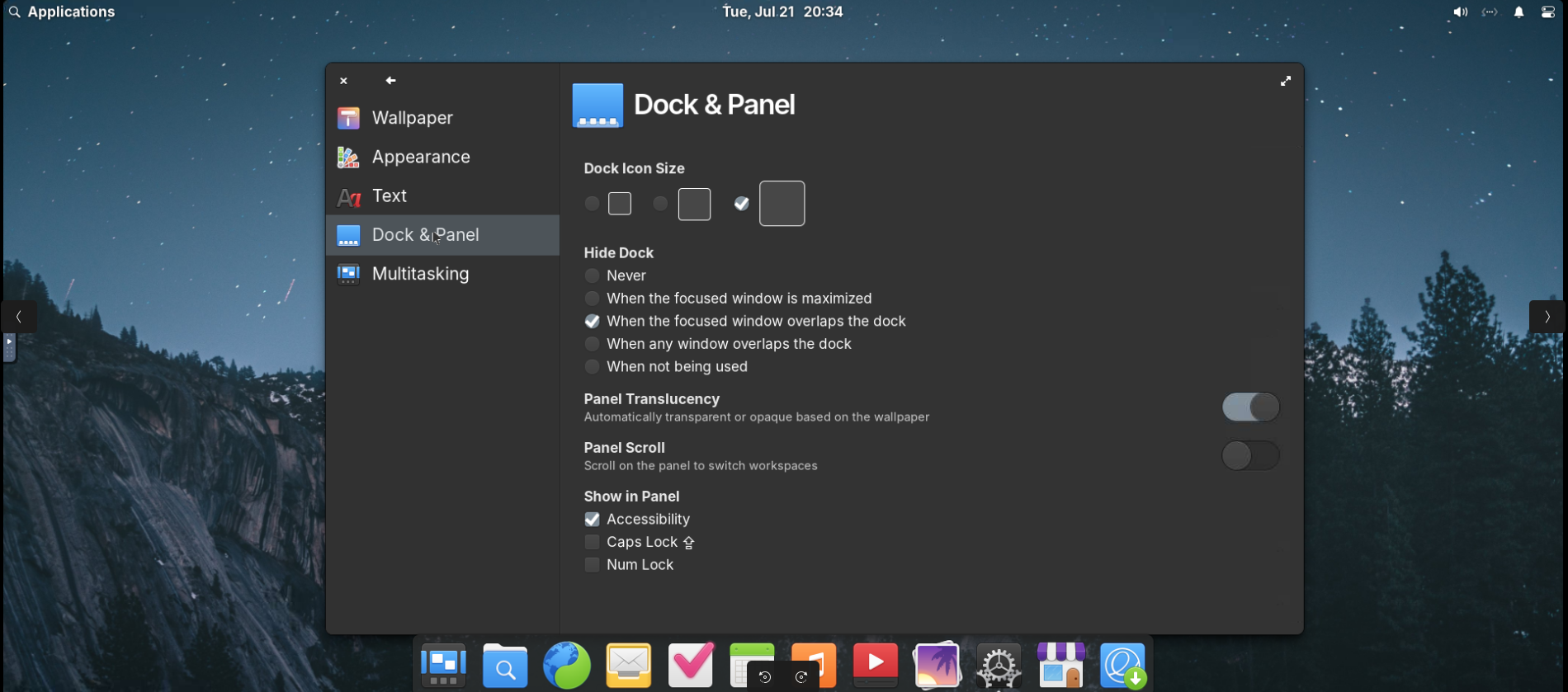
I like larger icon sizes.
Conclusion
This is a free distro Bundles the Linux kernel with other software components for a complete operating system that gives you back ownership of your computer. It can extend the life of something old and keep it out of the landfill. There's no lock in here because if you can back up your files, you can change to another distro Bundles the Linux kernel with other software components for a complete operating system if you find one you like better.
Try it on an old computer this weekend, and see how you like it.
Related Posts
A mom's favorite Linux distro, Zorin OS
A tour of my Linux open source operating system that I use as a mom and programmer.
A Quick Look at Linux Mint Xfce - A Lightweight Distro for Your Less Powerful PC
Linux Mint Xfce is a lightweight desktop environment ideal for older computers with limited RAM. Learn how it works, what it looks like, and why it might be the right choice for your aging hardware.
Why Linux Mint Cinnamon Works for Beginners and Privacy-Conscious Users
Discover why Linux Mint Cinnamon is a strong choice for newcomers seeking privacy, customization through desklets and applets, and a subscription-free computing experience.

About Katie B
I'm a mom and a programmer in the mid-Atlantic region of the USA. I like reading, games, hiking.
📬 Join the Newsletter
Get thoughtful writing and practical tips delivered to your inbox. No spam, just meaningful content. Make sure to check your e-mail (and maybe your spam/junk folder) for an e-mail to confirm your subscription!
Frequently asked questions
What is elementaryOS?
elementaryOS is a free and open-source Linux distribution that uses the Pantheon desktop environment, designed to provide a macOS-like look and feel.
Can I try elementaryOS without installing it?
Yes — you can boot from a live USB and select 'Try Demo Mode' to explore the desktop without making any changes to your computer.
Does elementaryOS have accessibility features?
Yes. elementaryOS includes options for dark mode, adjustable text size, reduced motion, and a built-in dyslexia-friendly font, all accessible from the desktop right-click menu.
Will elementaryOS work on an old Mac?
It can, but compatibility varies by model. Research your specific Mac model and what others have experienced before attempting installation.